> ## Documentation Index
> Fetch the complete documentation index at: https://docs.mottostreaming.com/llms.txt
> Use this file to discover all available pages before exploring further.
# Annotations
> Points in time used to mark key moments in a stream.
## Introduction
Annotations are a powerful concept in the Motto platform. In fact, we believe it is this concept that makes Motto shine when it comes to live sports OTT platforms.
Annotations are representations of points in time in a video, and can be used to mark key moments in a match, like goals, fouls, or substitutions.
These moments can be tagged through our visual Studio interface without any technical knowledge.
Motto recently released an AI agent in beta that can fully automate the process of annotating your live-stream!
 By themselves, annotations are just empty containers; they do not "do" anything as such. However, they lay the fundament
for two important concepts in Motto: [actions](/guides/annotations/actions) and [frontend plugins](/guides/annotations/frontend-plugins).
In a nutshell, actions are automations that are triggered when an annotation is created, and frontend plugins are components that can be dropped into your OTT platform to enhance the user experience.
For more information, please read our sections about [actions](/guides/annotations/actions) and [frontend plugins](/guides/annotations/frontend-plugins).
## Get Started
Before you can get started with creating annotations, you must first create a few supporting objects. These are described below.
#### Annotation sets
An annotation set is a collection of the kinds of annotation types that you would like to create. Typically, you would create an annotation set for each sport that you are covering.
For example, you might have an annotation set for football, and another for basketball. To create your annotation set, follow these steps:
Call the [Create Annotation Set](/reference/studio-api/annotations/sets/v1/create-annotation-set) endpoint. In it's simplest form, this call could look like:
```
curl --request POST \
--url https://api.mottostreaming.com/annotations/sets/v1 \
--header 'Authorization: Bearer ' \
--header 'Content-Type: application/json' \
--data '{
"project_id": "",
"name": "Football"
}'
```
Once this set is created, please make sure to associate it with your event type by calling the [Attach Content Type](/reference/studio-api/annotations/sets/v1/attach-content-type) endpoint.
This will ensure that your annotation set shows up for the correct events in the Studio interface (you would not want to accidentally tag basketball annotations on a football event!)
```
curl --request POST \
--url 'https://api.mottostreaming.com/annotations/sets/v1//attach?project_id=&content_base_type=event&content_type_id=' \
--header 'Authorization: Bearer '
```
If you are not using a specialized event type, you should use `default` in place of the event type.
#### Annotation types
Once you have created an annotation set, you must create some annotation types within that set.
Annotation types are the different kinds of annotations that you can create.
For example, you might have an annotation type for goals, chances, corner kicks, red cards, kickoff, full-time, etc. To create your annotation types, follow these steps:
Call the [Create Annotation Type](/reference/studio-api/annotations/types/v1/create-annotation-type) endpoint. In it's simplest form, this call could look like:
```
curl --request POST \
--url https://api.mottostreaming.com/annotations/types/v1 \
--header 'Authorization: Bearer ' \
--header 'Content-Type: application/json' \
--data '{
"project_id": "",
"set_id": "",
"name": "Goal",
"priority": "1000",
"group_name": "In-Game Moments",
}'
```
This call will create an annotation type called "Goal" in the Football annotation set you just created. The `priority` field is used to order the annotation types in the Studio interface, and the `group_name` field is used to group the annotation types together.
#### Annotations
Now that you have created your annotation set and annotation types, you can start creating annotations for your video content! To create an annotation, follow these steps:
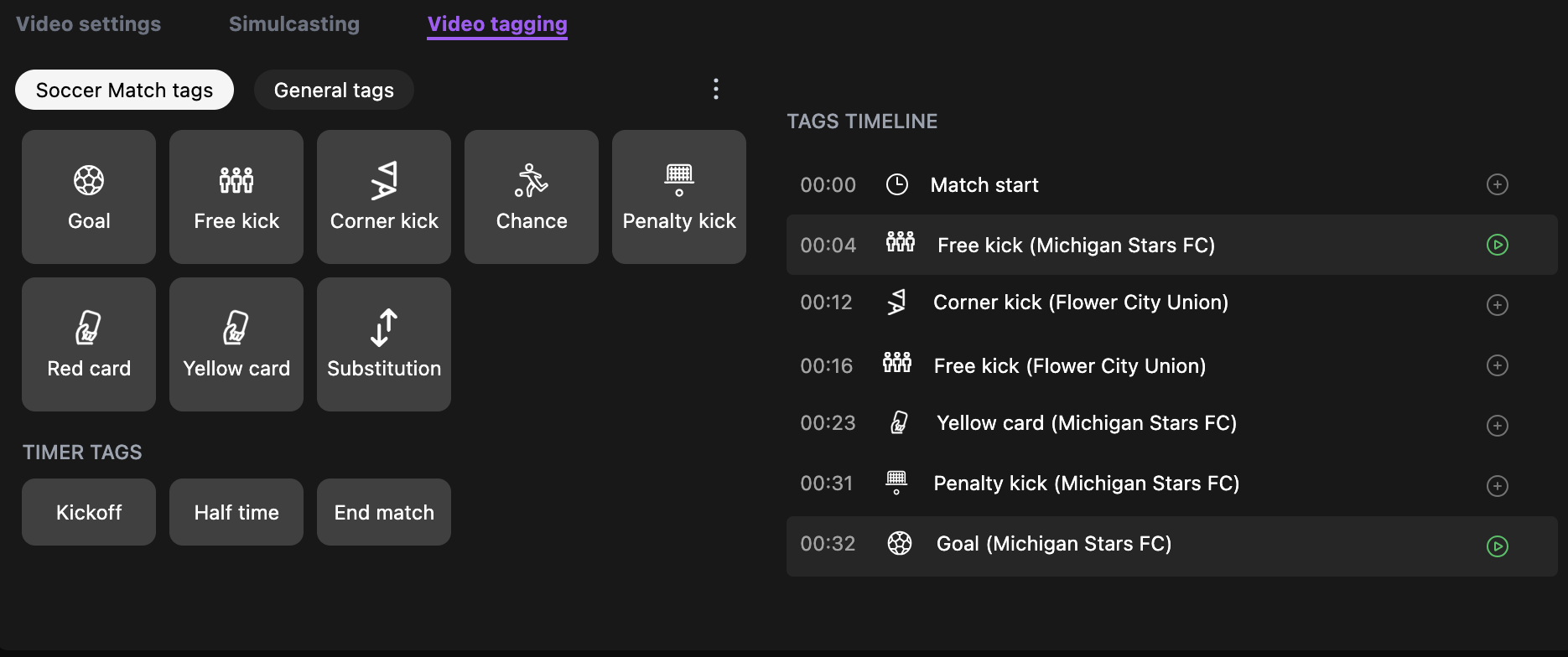
Navigate to the [Video Manager](/glossary/video-manager) in the Studio, and select the event and video you would like to annotate. Click on the "Video tagging" tab. If you have created an annotation set and associated annotation types, you should see something similar to this:
If you do not see the "Video tagging" tab in the Studio interface, this may mean that you have not attached your annotation set to your event type yet. Please refer to the [annotation set](/guides/annotations/annotations#annotation-sets) section above.
When you click on one of the available annotation types, an annotation will be created at the current time in the video player on that page.
Call the [Create Annotation](/reference/studio-api/annotations/annotations/v1/create-annotation) endpoint. In it's simplest form, this call could look like:
```
curl --request POST \
--url https://api.mottostreaming.com/annotations/annotations/v1 \
--header 'Authorization: Bearer ' \
--header 'Content-Type: application/json' \
--data '{
"project_id": "",
"type_id": "",
"video_id": "",
"offset": "60000"
}'
```
This call will create an annotation of type "Goal" that you just created, in the video of your choice. The `offset` field is the time in milliseconds where the annotation should be placed. In the example above, this would be at 60 seconds into the video.
The `video_id` field represents a single video, and is not the same as the `event_id` or `live_stream_id`.
## Next Steps
Now that you know how to create annotations, you may want to learn more about [actions](/guides/annotations/actions), which allows you to automate your workflows during a live-stream or VOD!
By themselves, annotations are just empty containers; they do not "do" anything as such. However, they lay the fundament
for two important concepts in Motto: [actions](/guides/annotations/actions) and [frontend plugins](/guides/annotations/frontend-plugins).
In a nutshell, actions are automations that are triggered when an annotation is created, and frontend plugins are components that can be dropped into your OTT platform to enhance the user experience.
For more information, please read our sections about [actions](/guides/annotations/actions) and [frontend plugins](/guides/annotations/frontend-plugins).
## Get Started
Before you can get started with creating annotations, you must first create a few supporting objects. These are described below.
#### Annotation sets
An annotation set is a collection of the kinds of annotation types that you would like to create. Typically, you would create an annotation set for each sport that you are covering.
For example, you might have an annotation set for football, and another for basketball. To create your annotation set, follow these steps:
Call the [Create Annotation Set](/reference/studio-api/annotations/sets/v1/create-annotation-set) endpoint. In it's simplest form, this call could look like:
```
curl --request POST \
--url https://api.mottostreaming.com/annotations/sets/v1 \
--header 'Authorization: Bearer ' \
--header 'Content-Type: application/json' \
--data '{
"project_id": "",
"name": "Football"
}'
```
Once this set is created, please make sure to associate it with your event type by calling the [Attach Content Type](/reference/studio-api/annotations/sets/v1/attach-content-type) endpoint.
This will ensure that your annotation set shows up for the correct events in the Studio interface (you would not want to accidentally tag basketball annotations on a football event!)
```
curl --request POST \
--url 'https://api.mottostreaming.com/annotations/sets/v1//attach?project_id=&content_base_type=event&content_type_id=' \
--header 'Authorization: Bearer '
```
If you are not using a specialized event type, you should use `default` in place of the event type.
#### Annotation types
Once you have created an annotation set, you must create some annotation types within that set.
Annotation types are the different kinds of annotations that you can create.
For example, you might have an annotation type for goals, chances, corner kicks, red cards, kickoff, full-time, etc. To create your annotation types, follow these steps:
Call the [Create Annotation Type](/reference/studio-api/annotations/types/v1/create-annotation-type) endpoint. In it's simplest form, this call could look like:
```
curl --request POST \
--url https://api.mottostreaming.com/annotations/types/v1 \
--header 'Authorization: Bearer ' \
--header 'Content-Type: application/json' \
--data '{
"project_id": "",
"set_id": "",
"name": "Goal",
"priority": "1000",
"group_name": "In-Game Moments",
}'
```
This call will create an annotation type called "Goal" in the Football annotation set you just created. The `priority` field is used to order the annotation types in the Studio interface, and the `group_name` field is used to group the annotation types together.
#### Annotations
Now that you have created your annotation set and annotation types, you can start creating annotations for your video content! To create an annotation, follow these steps:
Navigate to the [Video Manager](/glossary/video-manager) in the Studio, and select the event and video you would like to annotate. Click on the "Video tagging" tab. If you have created an annotation set and associated annotation types, you should see something similar to this:
If you do not see the "Video tagging" tab in the Studio interface, this may mean that you have not attached your annotation set to your event type yet. Please refer to the [annotation set](/guides/annotations/annotations#annotation-sets) section above.
When you click on one of the available annotation types, an annotation will be created at the current time in the video player on that page.
Call the [Create Annotation](/reference/studio-api/annotations/annotations/v1/create-annotation) endpoint. In it's simplest form, this call could look like:
```
curl --request POST \
--url https://api.mottostreaming.com/annotations/annotations/v1 \
--header 'Authorization: Bearer ' \
--header 'Content-Type: application/json' \
--data '{
"project_id": "",
"type_id": "",
"video_id": "",
"offset": "60000"
}'
```
This call will create an annotation of type "Goal" that you just created, in the video of your choice. The `offset` field is the time in milliseconds where the annotation should be placed. In the example above, this would be at 60 seconds into the video.
The `video_id` field represents a single video, and is not the same as the `event_id` or `live_stream_id`.
## Next Steps
Now that you know how to create annotations, you may want to learn more about [actions](/guides/annotations/actions), which allows you to automate your workflows during a live-stream or VOD!