> ## Documentation Index
> Fetch the complete documentation index at: https://docs.mottostreaming.com/llms.txt
> Use this file to discover all available pages before exploring further.
# Creative Works
## Introduction
A creative work (sometimes called "original content") in Motto's systems represents any video content that does not fit into an [event](/guides/cms/events).
Creative works can be associated with VOD content so that your OTT platform can playback video when a user clicks on your creative work.
## Get Started
You can get started using the Motto Studio, which we recommend for non-technical users. Alternatively, you may get started by using the Motto API.
The following steps will guide you through the process of setting up a creative work via the Studio.
#### Creating a creative work
First, navigate to the "Content" tab in the Studio. You will see a section titled Original Content.
Click on the "New" button to start creating a new creative work. A sidebar will appear that prompts you to enter the creative work's details.
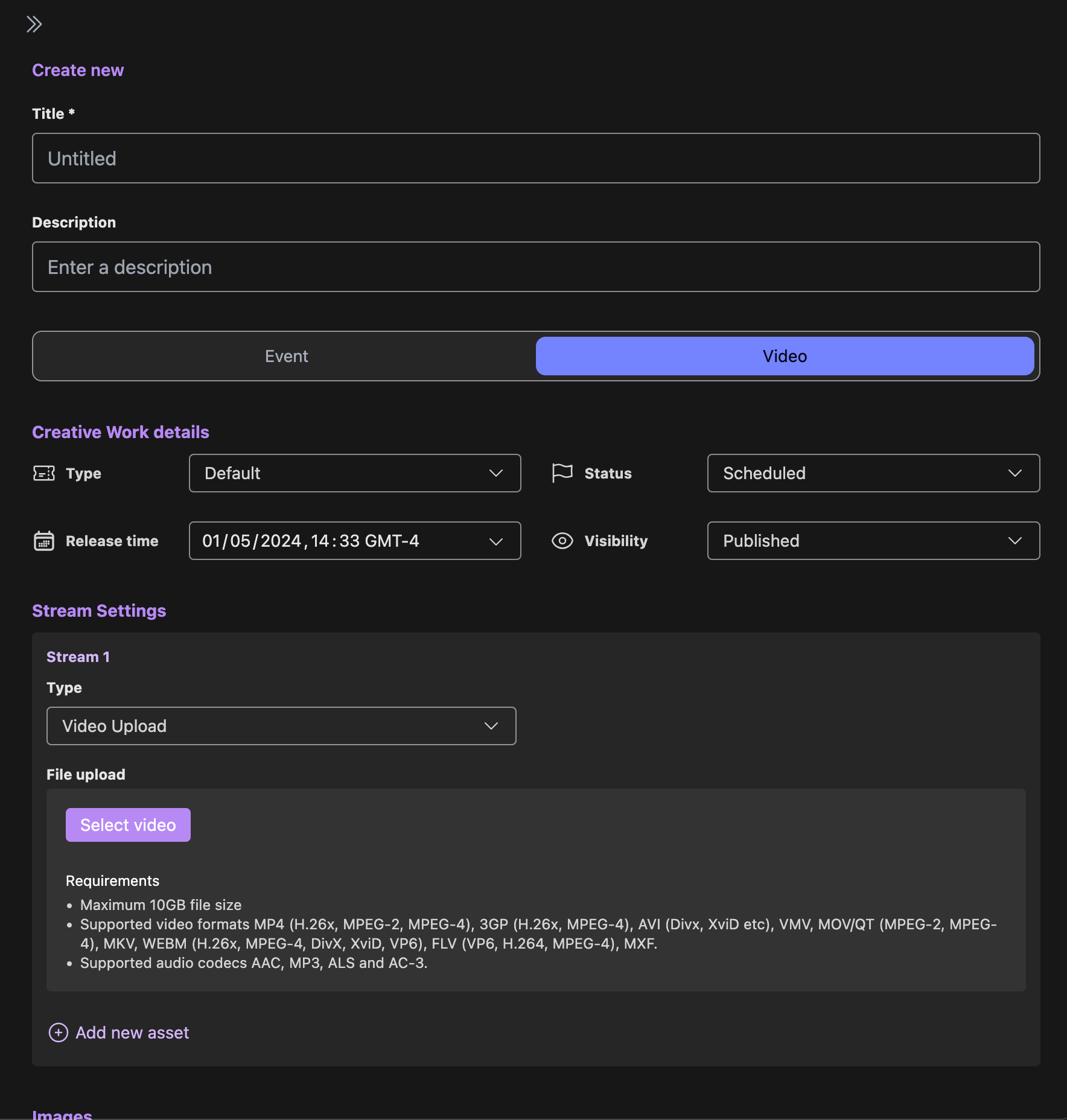 Now select the "Videos" tab in the sidebar, and start entering the relevant information. Currently, only the creative work's title is required information, the rest can be left empty if desired.
It is recommended to enter as much information as possible, as this information will show up on your OTT platform and can help with discoverability.
You can now upload one or more finished videos. You can do so by selecting the "Video Upload" option. Go [here](/guides/streaming/vod) for more details.
You can also associate thumbnail with your creative work. This will be used if you also use Motto's OTT platform, as it will show up in the carousel component.
Now select the "Videos" tab in the sidebar, and start entering the relevant information. Currently, only the creative work's title is required information, the rest can be left empty if desired.
It is recommended to enter as much information as possible, as this information will show up on your OTT platform and can help with discoverability.
You can now upload one or more finished videos. You can do so by selecting the "Video Upload" option. Go [here](/guides/streaming/vod) for more details.
You can also associate thumbnail with your creative work. This will be used if you also use Motto's OTT platform, as it will show up in the carousel component.
 After pressing "Save", your creative work is now created!
If you prefer using the Studio API to interact with the Motto platform, you can follow the following steps to achieve
the same result as described in the "Via the Studio" section.
1. Call the [Create Creative Work](/reference/studio-api/cms/creative-works/v1/create-creative-work) endpoint.
2. (Optionally) if you have already created a video previously, you can associate your `video_id` with the creative work in the `video_ids` array.
## Next Steps
You have now created a basic creative work, which is useful when you are just starting on your Motto journey, but in most real scenarios you will want to associate more metadata
with your creative works. For example, you may wish to associate producer and soundtrack information with a documentary.
In Motto, this work by creating [Custom Types](/guides/cms/content-types).
After pressing "Save", your creative work is now created!
If you prefer using the Studio API to interact with the Motto platform, you can follow the following steps to achieve
the same result as described in the "Via the Studio" section.
1. Call the [Create Creative Work](/reference/studio-api/cms/creative-works/v1/create-creative-work) endpoint.
2. (Optionally) if you have already created a video previously, you can associate your `video_id` with the creative work in the `video_ids` array.
## Next Steps
You have now created a basic creative work, which is useful when you are just starting on your Motto journey, but in most real scenarios you will want to associate more metadata
with your creative works. For example, you may wish to associate producer and soundtrack information with a documentary.
In Motto, this work by creating [Custom Types](/guides/cms/content-types).