> ## Documentation Index
> Fetch the complete documentation index at: https://docs.mottostreaming.com/llms.txt
> Use this file to discover all available pages before exploring further.
# Video ads
> How to plan, configure, and test video ad delivery with Motto.
## Introduction
Video ads let you monetize live or on-demand streams with pre-roll ads. Motto supports two ad sources:
* **Sponsorship Video Ad**: Upload and control your own video directly in Motto Studio — ideal for direct sponsor deals, partner promos, or house ads.
* **VAST Ad Tag**: Connect to an external ad server (e.g. Google Ad Manager, SpringServe, FreeWheel) for programmatic campaigns and dynamic targeting.
Both options are configured from the **Video Ads** screen under **Monetization** → **Ads & Sponsorship** in Motto Studio.
### Prerequisites
* A Motto Studio account with access to the Monetization section
* If using external ad-tech: a VAST-capable ad server with tags created for your inventory
## Get Started
Open Motto Studio and navigate to **Monetization** → **Ads & Sponsorship**. Ensure the **Video Ads** tab is selected.
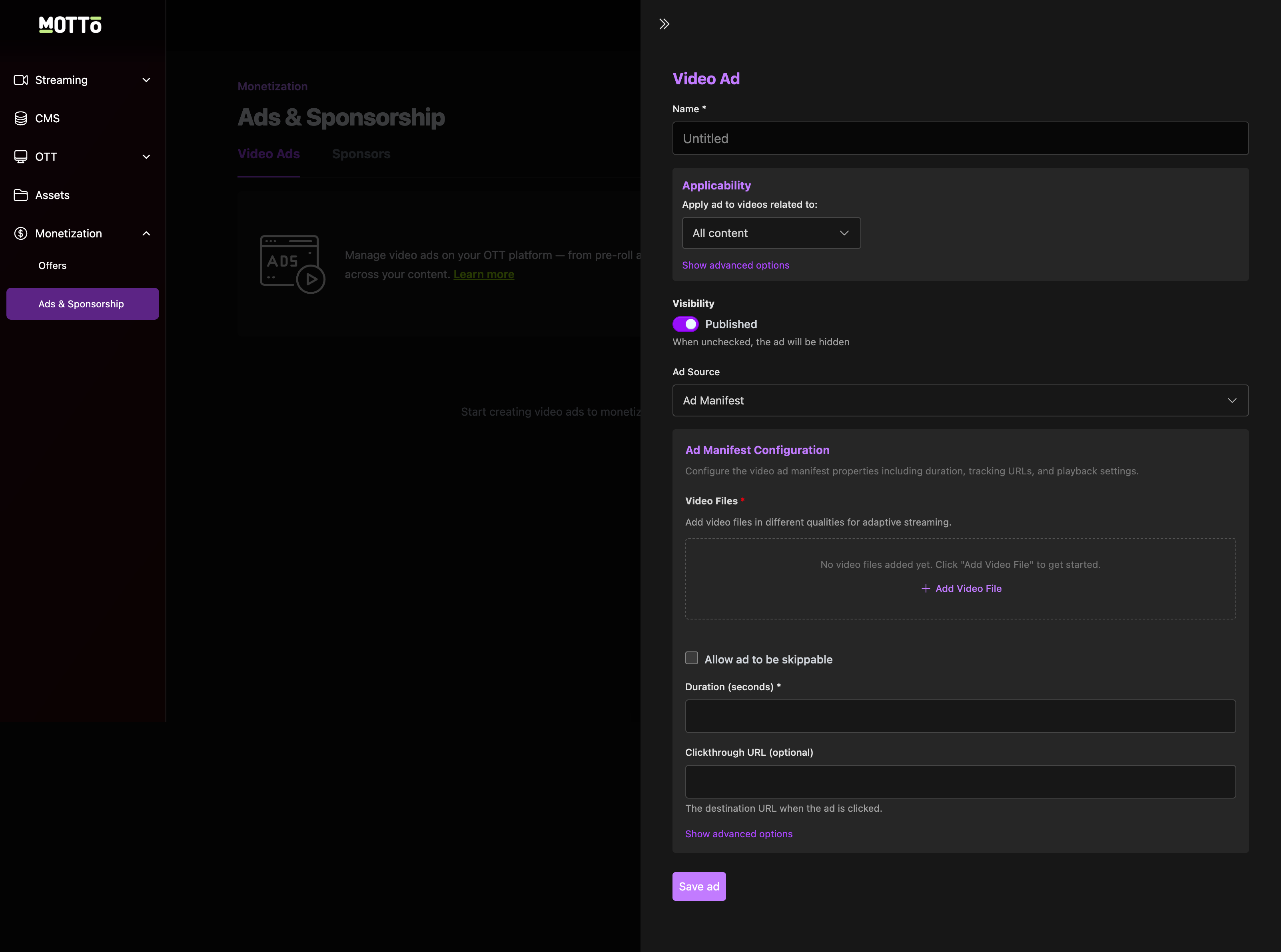
Click **Create new Video Ad** to open the configuration panel.
Enter a clear, internal name that will help you identify and manage this ad later.
**Example names:**
* `Main Sponsor – Pre-roll (15s)`
* `GAM – VAST Pre-roll`
* `House Ad – Season Promo`
Choose which videos this ad applies to. By default, the ad will apply to **All content**.
Click **Show advanced options** to scope the ad by:
* Competition
* Content type
* Other delivery rules
Use specific targeting to ensure sponsor ads only appear on relevant content, improving both viewer experience and sponsor satisfaction.
Use the **Published** toggle to control when the ad is active:
* **On**: The ad is live and will be delivered to viewers based on your applicability rules.
* **Off**: The ad is staged or paused and will not be shown to viewers.
Keep new ads unpublished while testing, then toggle on when ready to go live.
Select the source for your video ad. You have two options:
#### Option A: Sponsorship Video Ad
Choose **Sponsorship Video Ad** when you want to upload and control your own video.
1. Upload one or more video files (multiple qualities recommended for adaptive streaming)
2. Configure playback options:
* **Skippable**: Allow viewers to skip after a set duration (optional)
* **Duration**: Set the length in seconds (must match the asset length exactly)
* **Clickthrough URL**: Where viewers go when they click the ad (optional)
Best for: direct sponsor deals, partner/league promos, house ads, and fixed pre-roll placements where you need guaranteed visibility.
#### Option B: VAST Ad Tag
Choose **Ad Tag URL (VAST)** when connecting to an external ad server.
1. Paste the full VAST tag URL from your ad server
2. The tag handles ad selection, rotation, and tracking automatically
**Example tag:**
```
https://pubads.g.doubleclick.net/gampad/ads?...
```
Best for: programmatic campaigns, ad rotation, dynamic targeting, and pacing controlled by your ad server.
Click **Save ad** to store your configuration.
If the **Published** toggle is on, the ad will immediately begin delivery following your applicability rules and ad type settings.
 ## Testing and validation
Before going live with your video ads, verify the following:
* **Pre-roll playback**: Confirm ads play correctly before both live and VOD content
* **Ad ordering**: Verify ads play in the expected sequence using test tags from your ad server
* **Tracking**: Confirm clickthrough URLs, quartile beacons, and companion creatives fire as expected
* **Error handling**: Test on slow networks and with ad timeouts to ensure playback resumes gracefully on errors
Most ad servers provide test tags specifically for validation. Use these during development to avoid affecting live campaign metrics.
## Testing and validation
Before going live with your video ads, verify the following:
* **Pre-roll playback**: Confirm ads play correctly before both live and VOD content
* **Ad ordering**: Verify ads play in the expected sequence using test tags from your ad server
* **Tracking**: Confirm clickthrough URLs, quartile beacons, and companion creatives fire as expected
* **Error handling**: Test on slow networks and with ad timeouts to ensure playback resumes gracefully on errors
Most ad servers provide test tags specifically for validation. Use these during development to avoid affecting live campaign metrics.