> ## Documentation Index
> Fetch the complete documentation index at: https://docs.mottostreaming.com/llms.txt
> Use this file to discover all available pages before exploring further.
# Introduction
Motto was built with live-streaming sports in mind, as our founding team comes from sports OTTs like [MyCujoo](https://en.wikipedia.org/wiki/MyCujoo), [Eleven Sports](https://en.wikipedia.org/wiki/Eleven_Sports) and [DAZN](https://en.wikipedia.org/wiki/DAZN).
We aim to simplify live-streaming for any rights-holder or broadcaster of sports video content, by reducing technical and operational complexity of professional OTT delivery.
Events are a central concept in any sports organization, because "match day" is what we all work towards!
An event in Motto's systems represents a single sports match, press conference, scrimmage session, or anything else that
has a start and end time in the real world. Events can be associated with one or more [live streams](/guides/streaming/events/live-streaming) and/or [VODs](/guides/streaming/events/vod).
## Get Started
You can get started using the Motto Studio, which we recommend for non-technical users. Alternatively, you may get started by using the Motto API.
The following steps will guide you through the process of setting up an event via the Studio.
#### Creating an event
First, navigate to the "Content" tab in the Studio. You will see a section titled Live & Upcoming.
Click on the "New" button to start creating a new event. A sidebar will appear that prompts you to enter the event's details.
 Now enter the information for your event. You can leave the "Event" tab selected. Currently, only the event's title is required information, the rest can be left empty if desired.
It is recommended to enter as much information as possible, as this information will show up on your OTT platform and can help with discoverability.
For your stream configuration, what to configure depends on your use-case:
* If you want to live-stream your event with a single camera angle, then the default configuration is sufficient. If you wish to live-stream with multiple camera angles, you an add more Stream entries using the plus icon. Go [here](/guides/streaming/events/live-streaming) for more details.
* If you want to upload a finished video, you can do so by selecting the "Video Upload" option. Go [here](/guides/streaming/vod) for more details.
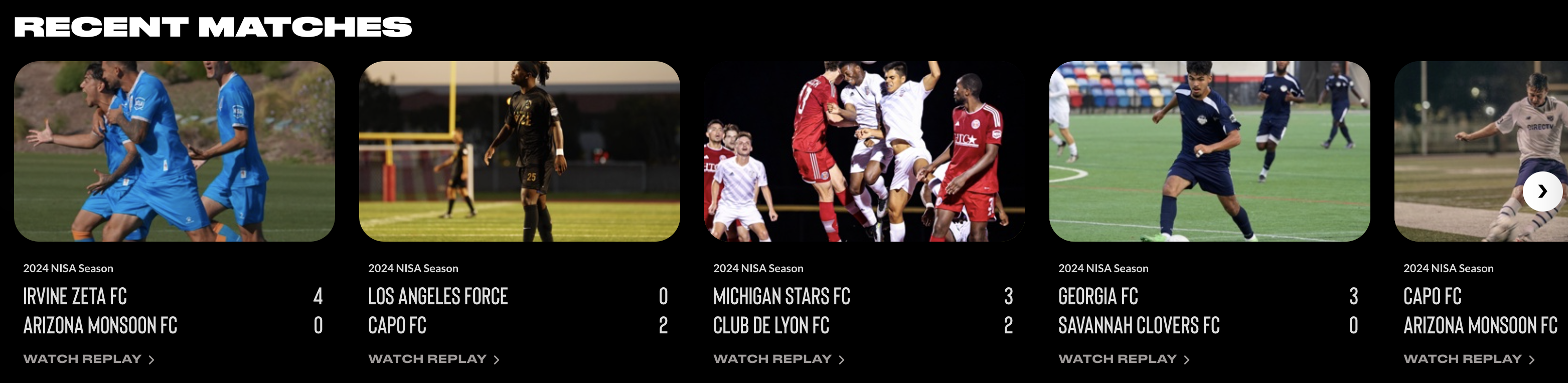
You can also associate thumbnail with your event. This will be used if you also use Motto's OTT platform, as it will show up in the carousel component.
Now enter the information for your event. You can leave the "Event" tab selected. Currently, only the event's title is required information, the rest can be left empty if desired.
It is recommended to enter as much information as possible, as this information will show up on your OTT platform and can help with discoverability.
For your stream configuration, what to configure depends on your use-case:
* If you want to live-stream your event with a single camera angle, then the default configuration is sufficient. If you wish to live-stream with multiple camera angles, you an add more Stream entries using the plus icon. Go [here](/guides/streaming/events/live-streaming) for more details.
* If you want to upload a finished video, you can do so by selecting the "Video Upload" option. Go [here](/guides/streaming/vod) for more details.
You can also associate thumbnail with your event. This will be used if you also use Motto's OTT platform, as it will show up in the carousel component.
 After pressing "Save", your event is now created!
If you prefer using the Studio API to interact with the Motto platform, you can follow the following steps to achieve
the same result as described in the "Via the Studio" section.
1. Call the [Create Event](/reference/studio-api/cms/events/v1/create-event) endpoint.
2. (Optionally) if you have already created a video previously, you can associate your `video_id` with the event in the `video_ids` array.
## Next Steps
You have now created a basic event, which is useful when you are just starting on your Motto journey, but in most real scenarios you will want to associate more metadata
with your events. For example, you may wish to associate team or competition information with the event, for improved discoverability on your OTT platform,
and so that this information can be displayed in your OTT platform's UI.
In Motto, this work by creating [Custom Types](/guides/cms/content-types). Our support team can also help you with this, so don't hesitate to reach out to us!
After pressing "Save", your event is now created!
If you prefer using the Studio API to interact with the Motto platform, you can follow the following steps to achieve
the same result as described in the "Via the Studio" section.
1. Call the [Create Event](/reference/studio-api/cms/events/v1/create-event) endpoint.
2. (Optionally) if you have already created a video previously, you can associate your `video_id` with the event in the `video_ids` array.
## Next Steps
You have now created a basic event, which is useful when you are just starting on your Motto journey, but in most real scenarios you will want to associate more metadata
with your events. For example, you may wish to associate team or competition information with the event, for improved discoverability on your OTT platform,
and so that this information can be displayed in your OTT platform's UI.
In Motto, this work by creating [Custom Types](/guides/cms/content-types). Our support team can also help you with this, so don't hesitate to reach out to us!