

Documentation Index

Fetch the complete documentation index at: https://docs.mottostreaming.com/llms.txt

Use this file to discover all available pages before exploring further.

Introduction

Motto’s embeddable player lets you put any video, event, or creative work directly on your own website using a standard HTML <iframe> tag — no SDK or JavaScript required on your side. The embed is served from Motto’s infrastructure, so you do not need to host anything yourself. Your viewers can watch content in the iframe exactly as they would on a native Motto OTT platform, including ads and adaptive streaming.
The embed player supports public content only.

Get Started

The easiest way to get the embed code is directly from Motto Studio:
  1. Find the video or event you want to embed.
  2. Open its options menu by clicking the three-dot icon on the item’s row.
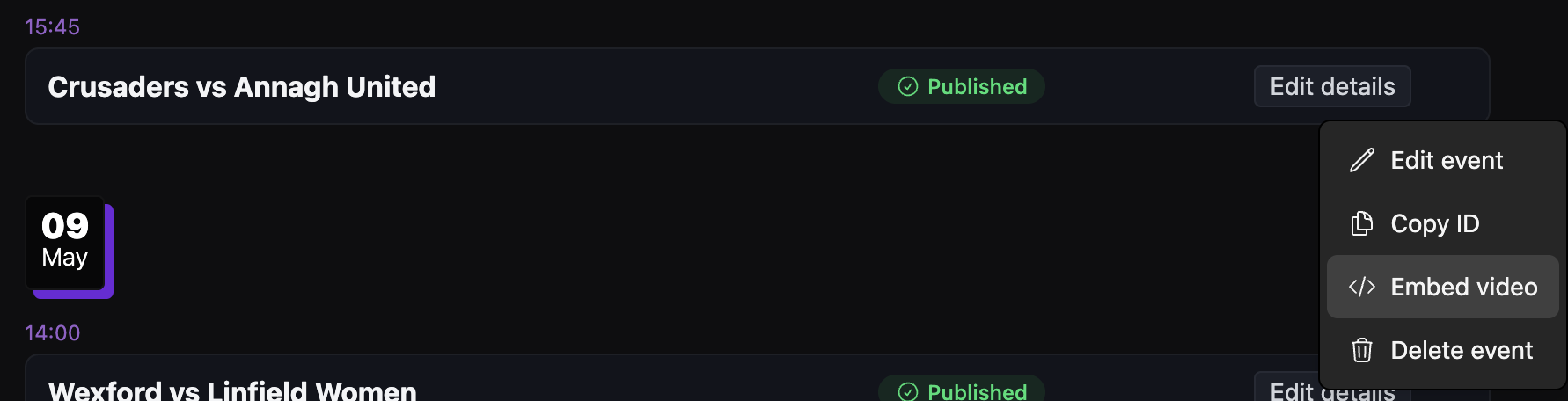
Options menu with Embed video option
  1. Click Embed video.
  2. In the embed modal, click Copy to copy the ready-made HTML snippet.
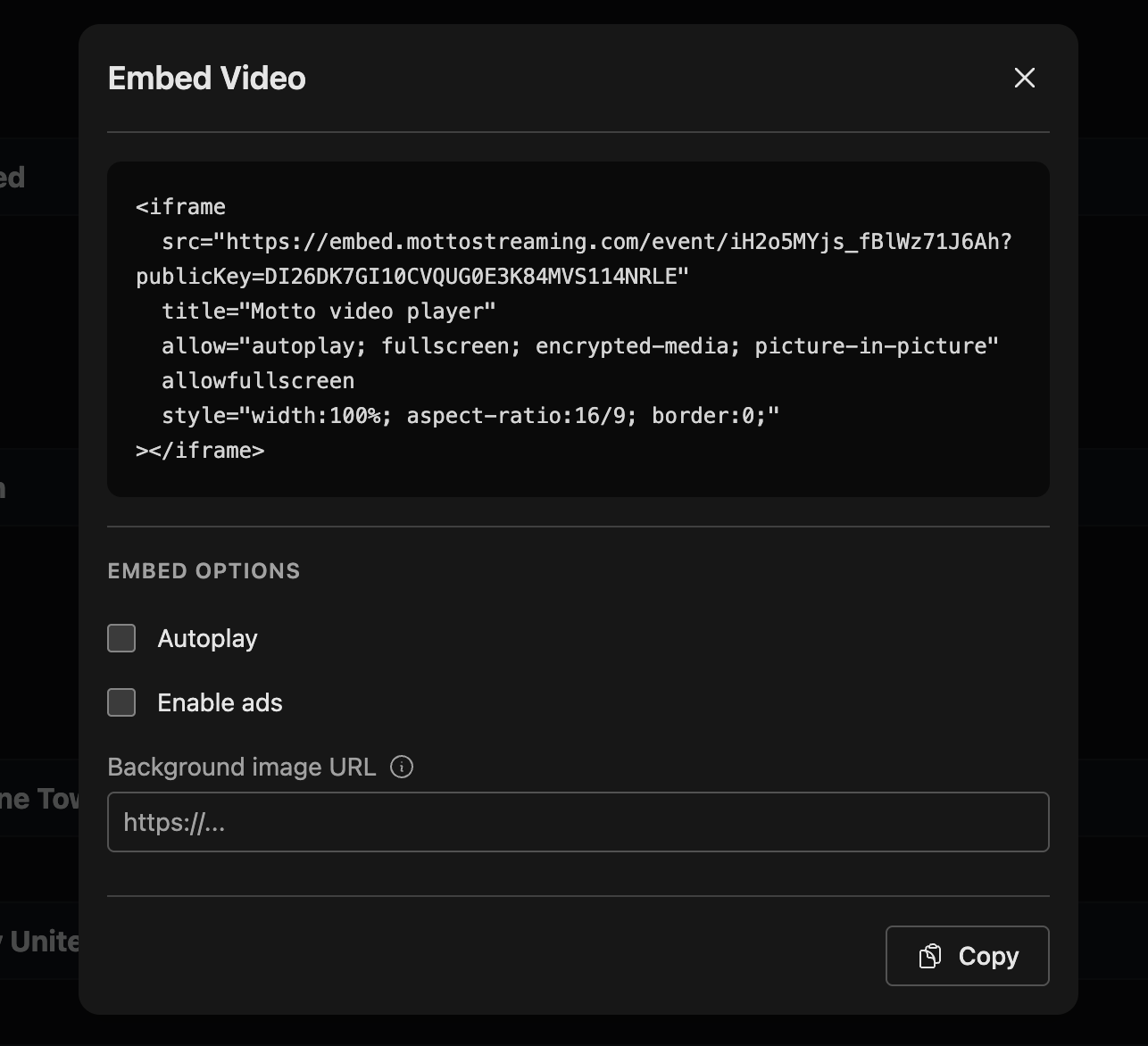
Embed player modal with Copy button
  1. Paste the copied snippet into your website’s HTML.
That’s it — the snippet already includes your content ID and public key. The sections below explain the available URL parameters and advanced options if you need to customize the embed further. There are three embed types, each mapping to a content type in Motto:
TypeContentURL pattern
videoA single video or VOD/video/{videoId}
eventA live or recorded event/event/{eventId}
creative-workA creative work with multiple videos/creative-work/{creativeWorkId}
The copied snippet follows this structure. You can also build it manually by replacing the placeholder values with your content ID and public key:
<iframe
  src="https://embed.mottostreaming.com/video/{videoId}?publicKey={publicKey}"
  allow="autoplay; fullscreen; encrypted-media; picture-in-picture"
  allowfullscreen
  style="width:100%; aspect-ratio:16/9; border:0;"
></iframe>
The iframe fills its container width and maintains a 16:9 aspect ratio. To control the size, wrap it in a <div> with your desired width.

Query parameters

All embed types

ParameterRequiredDescription
publicKeyyesYour Motto public key. Found in Studio under Settings → API.
autoplaynoSet to 1 or true to autoplay on load. Requires allow="autoplay" on the iframe.
adsnoSet to 1 or true to enable IMA video ads if configured on the content.
localenoLanguage code for player UI strings, e.g. en, es, fr. Defaults to en.

Event and creative-work embeds

ParameterDescription
backgroundImageUrlURL of an image to display as the background on the pre-event screen. Only used when the event has no poster image set in Studio.

Example with autoplay

<iframe
  src="https://embed.mottostreaming.com/event/{eventId}?publicKey={publicKey}&autoplay=1"
  allow="autoplay; fullscreen; encrypted-media; picture-in-picture"
  allowfullscreen
  style="width:100%; aspect-ratio:16/9; border:0;"
></iframe>

Listening to player events

The embed player can notify your page about playback events using the browser’s postMessage API. This is optional — the player works without it. To listen for events, add a message event listener on your page:
window.addEventListener('message', (event) => {
  if (event.data?.source !== 'motto-embed') return;

  switch (event.data.type) {
    case 'play':
      console.log('Viewer started watching');
      break;
    case 'ended':
      console.log('Video finished');
      break;
    case 'error':
      console.error('Player error:', event.data.payload.message);
      break;
  }
});

Available event types

TypePayloadDescription
playerReadyPlayer is initialised and ready
loadStartVideo loading has begun
canPlayVideo is ready to play
playPlayback started
pausePlayback paused
endedVideo reached the end
videoDataVideoData objectContent metadata loaded from the API
emptyPlaylistsContent exists but has no playable streams
error{ message: string }A player or API error occurred
adStartAn ad started playing
adCompleteAn ad finished
adSkippedViewer skipped an ad
allAdsCompletedAll ads in the break completed
All events carry { source: 'motto-embed', type: string, payload?: object }.

Content Protection

By default, every website is allowed to embed your videos using the approach described here. However, this means it is trivial for malicious actors to distribute your content by embedding it in their own website rather than yours. To prevent this, you can use our Domain Pinning feature. By doing so, only the domains that you configure will be allowed to embed your content. At a technical level, this is done via a Content-Security-Policy: frame-ancestors <domains> header in the iframe page, which tells the user’s browser whether to allow loading the iframe.
If your website sets a Content-Security-Policy: frame-src header, add frame-src https://embed.mottostreaming.com to allow the iframe to load.

Next Steps

  • Enable video ads and pass ads=1 in your embed URL to monetize your embedded content.